The PWW Payment Portal
The payment module will allow agencies to make payments via their PWW portal. Additionally, Food Banks will be able to make payments to each other on behalf of their agencies by utilizing the same system through P2 Core. This knowledge article explains how to enable USAePay and outlines the steps to make payments.
Registering for a USAePay by NMI Account
Prior to completing the steps outlined below, Food Banks must enroll for the USAePay services. If your Food Bank already has an established relationship with NMI and USAePay services, you can log into their account by clicking HERE. If you do not currently have access to USAePay services, contact our Support Team by clicking Submit a Ticket. Please make sure your ticket includes all required fields, including your name, email address, the name of your Food Bank, and a short message requesting to be connected with a USAePay representative.
Configuring USAePay in Primarius
To begin, add the USAePay transaction URL, API key, and PIN.
1. From the Primarius navigation menu, select Setup > Application Interfaces.
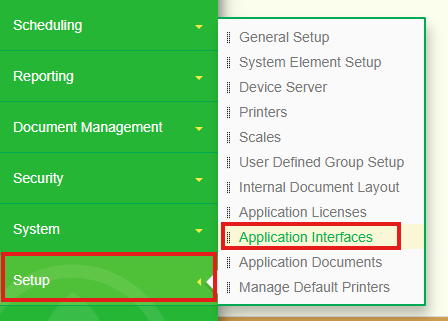
2. Find and select the Edit button to the left of USAePay.

3. Click Configuration, enter the required information by clicking the Edit button, enter the Value, and click Save.
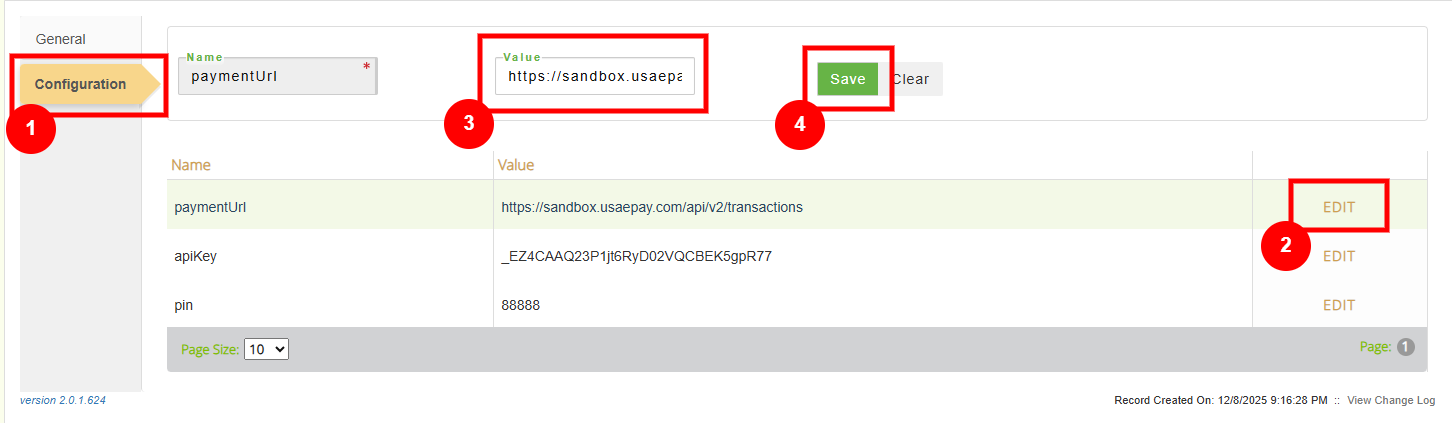
*Repeat this step for each of the three fields. Data for these fields will be sourced from your USAePay account and can be accessed via the links below.
Enabling the Payment Module Visibility in P2
1. From the Primarius navigation menu, select Setup > General Setup.
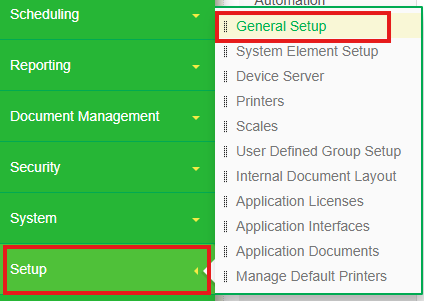
2. Select Agencies, then check the "Show the Make Payment button on P2" box.
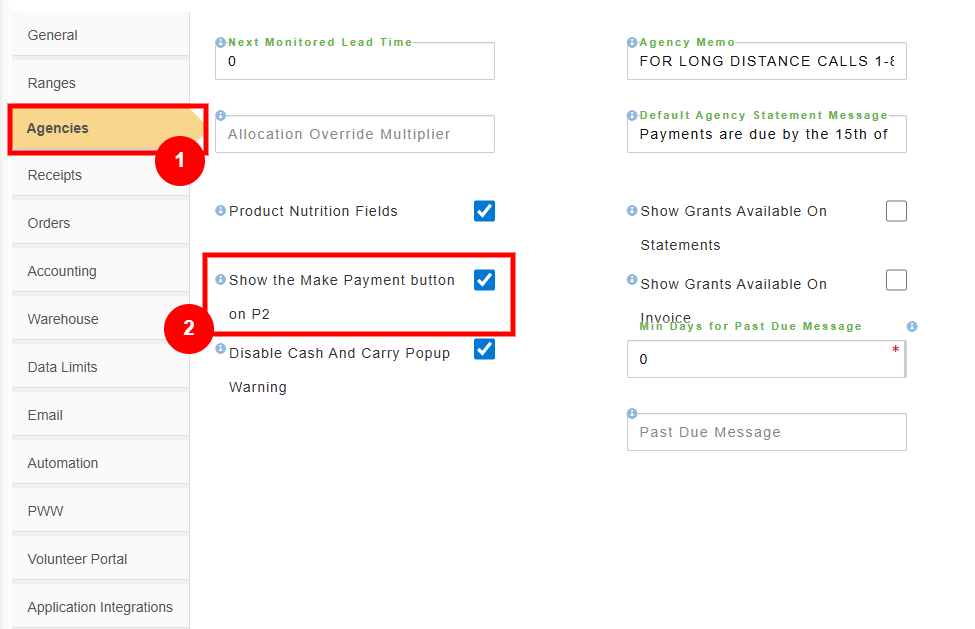
*Checking this box will enable the Make Payment button to display on the Orders grid. You can view this by going to Agencies > Orders.
Enabling the Payment Module Visibility in PWW
1. From the Primarius navigation menu, select Setup > General Setup.
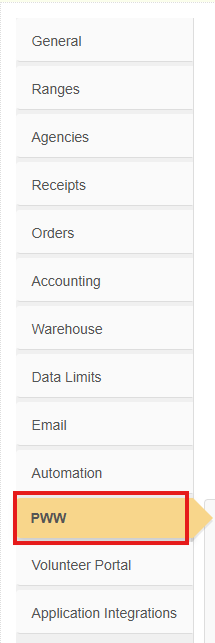
2. Select PWW, then check the "Show the Make Payment button on PWW" box.

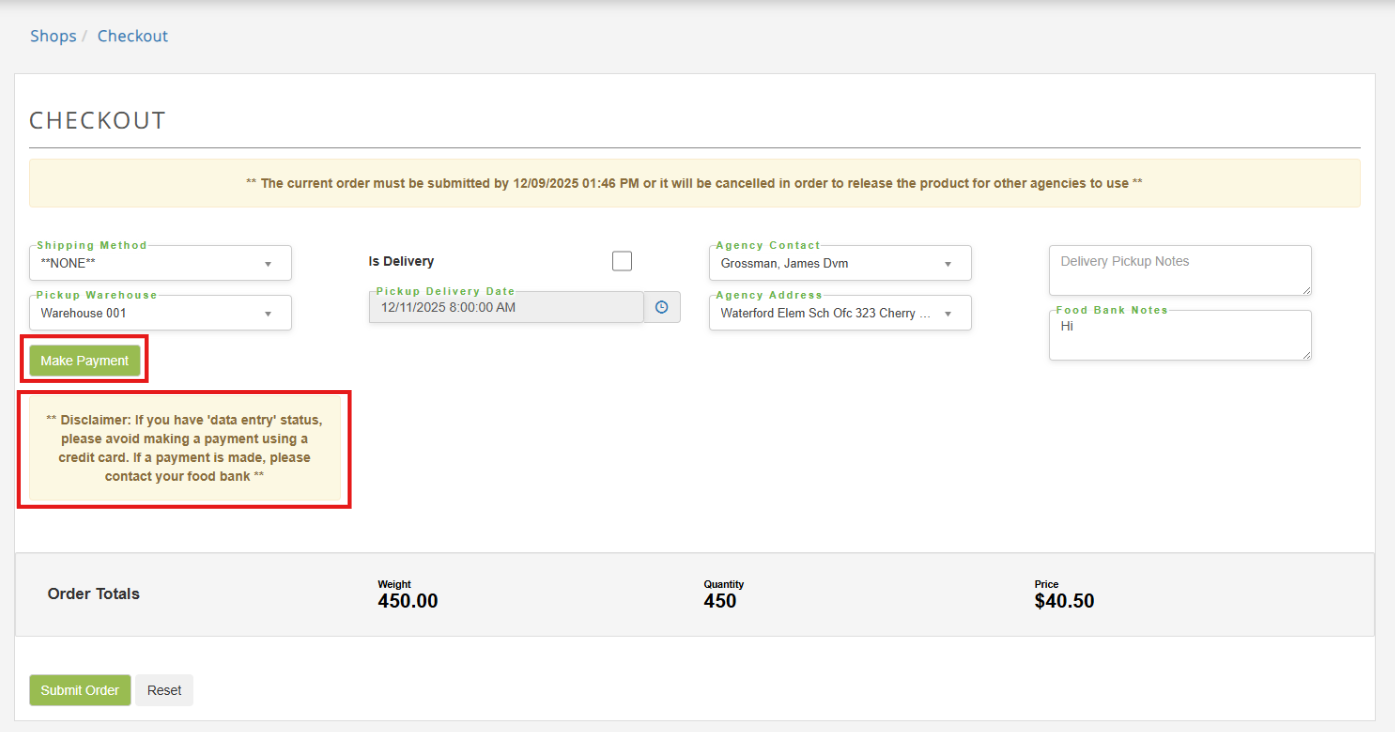
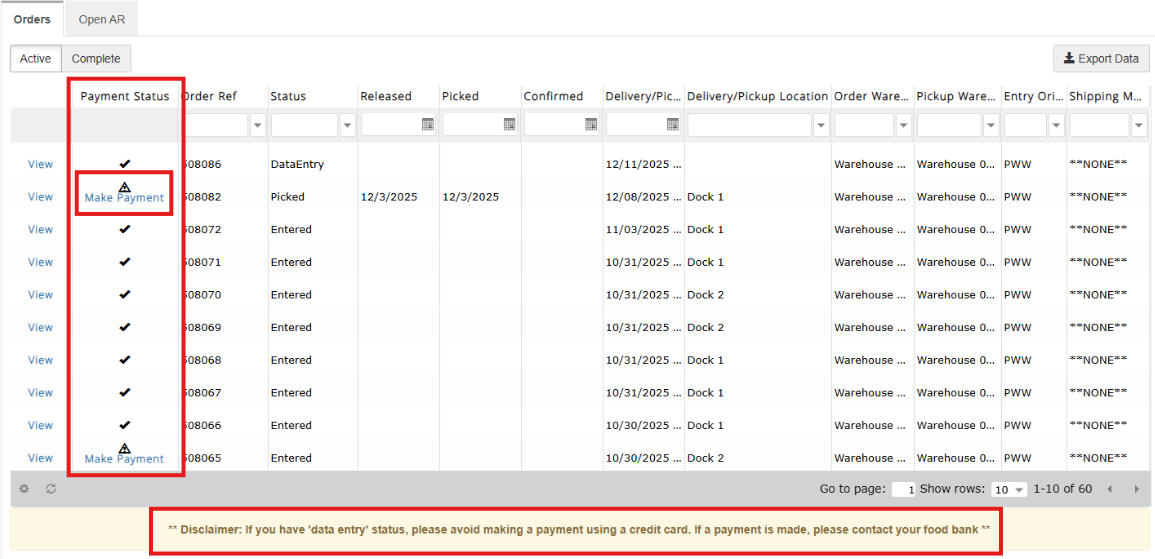
*Enabling this option will allow visibility to the Make A Payment button and the associated disclaimer. These are displayed on the checkout page as well as the Order History page.
Submitting a Payment in PWW
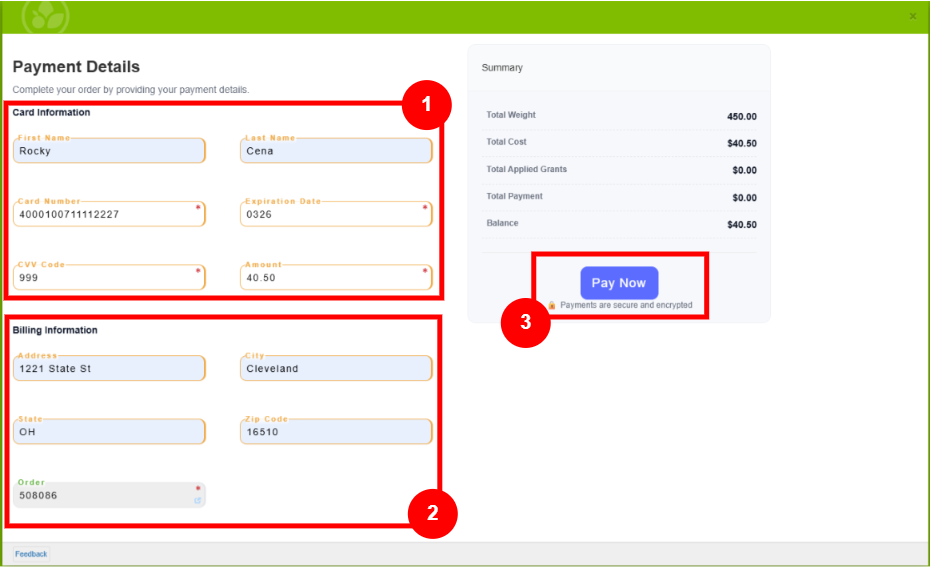
Once the agency has added items to their shopping cart and have clicked the Make Payment button, they will be prompted to enter their Payment Details. To complete the payment successfully, they will need to enter First and Last Name, Card Number, Expiration Date (MMYY), CVV Code, Amount, and the full billing address. Click Pay Now to complete the purchase.
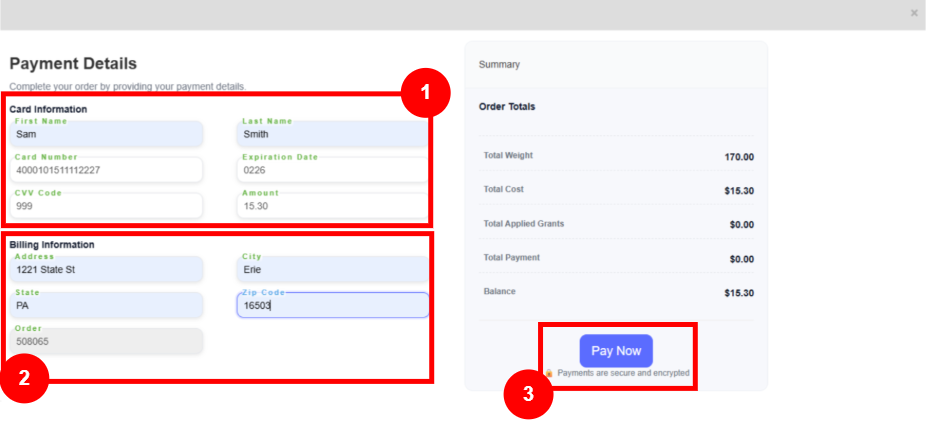
*Once the Pay Now button has been clicked, customers will receive one of two messages: Payment Completion or Payment Failure.
Customers can also complete payments from the Order History grid. Once they navigate to this page, they will see either a Make Payment button or a checkmark icon for each order in the Payment Status column. A checkmark indicates the order has been paid in full. If the order balance exceeds the total payments made, users will see the Make Payment button.
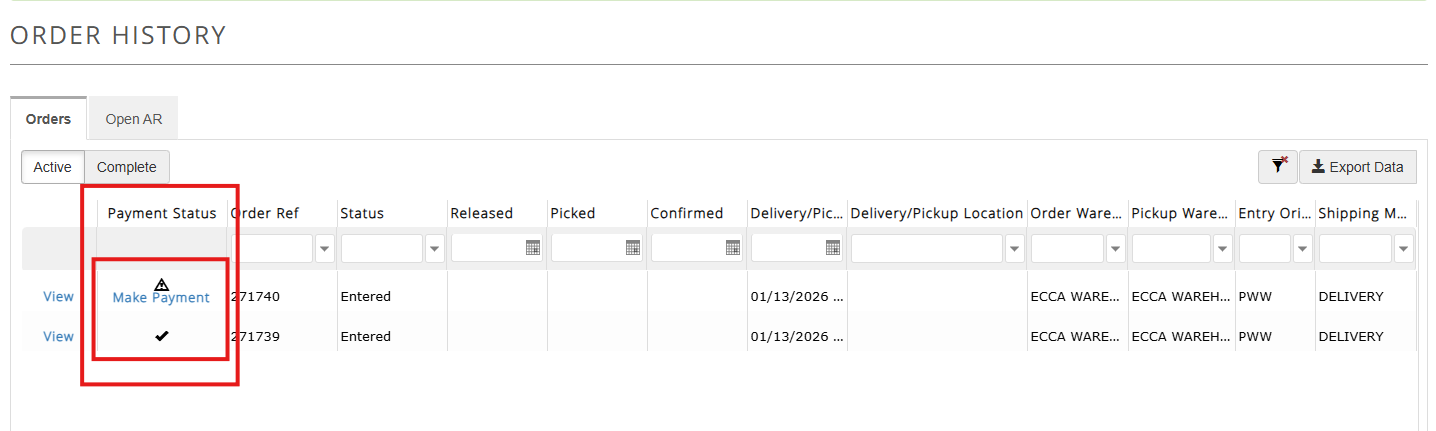
*Please note, an agency can make a payment by credit card, but it MUST be Business-to-Business (B2B). The bank information must be tied to the non-profit, not an individual to verify the business account. This is related to the IRS code 170e3 donated product handling fee regulations. Some food banks have developed authorization points to approve certain credit card numbers or have established policies to outline use cases. Feeding America members should refer to their contracts or Feeding America representative for questions on credit card payments.
Submitting a Payment in P2
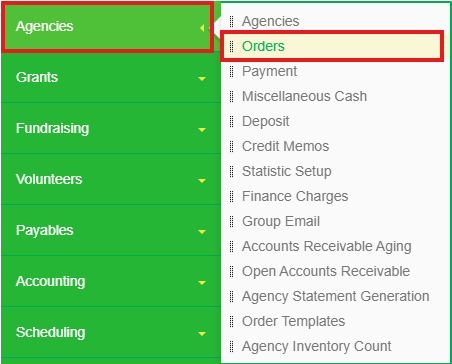
Food Banks will be able to complete an order payment on behalf of their agency. They can do this by clicking Agency from the Primarius navigation menu, then selecting Orders. This grid functions similarly to the PWW portal, displaying both a checkmark for paid in full orders and a Make Payment button for orders with a pending balance.
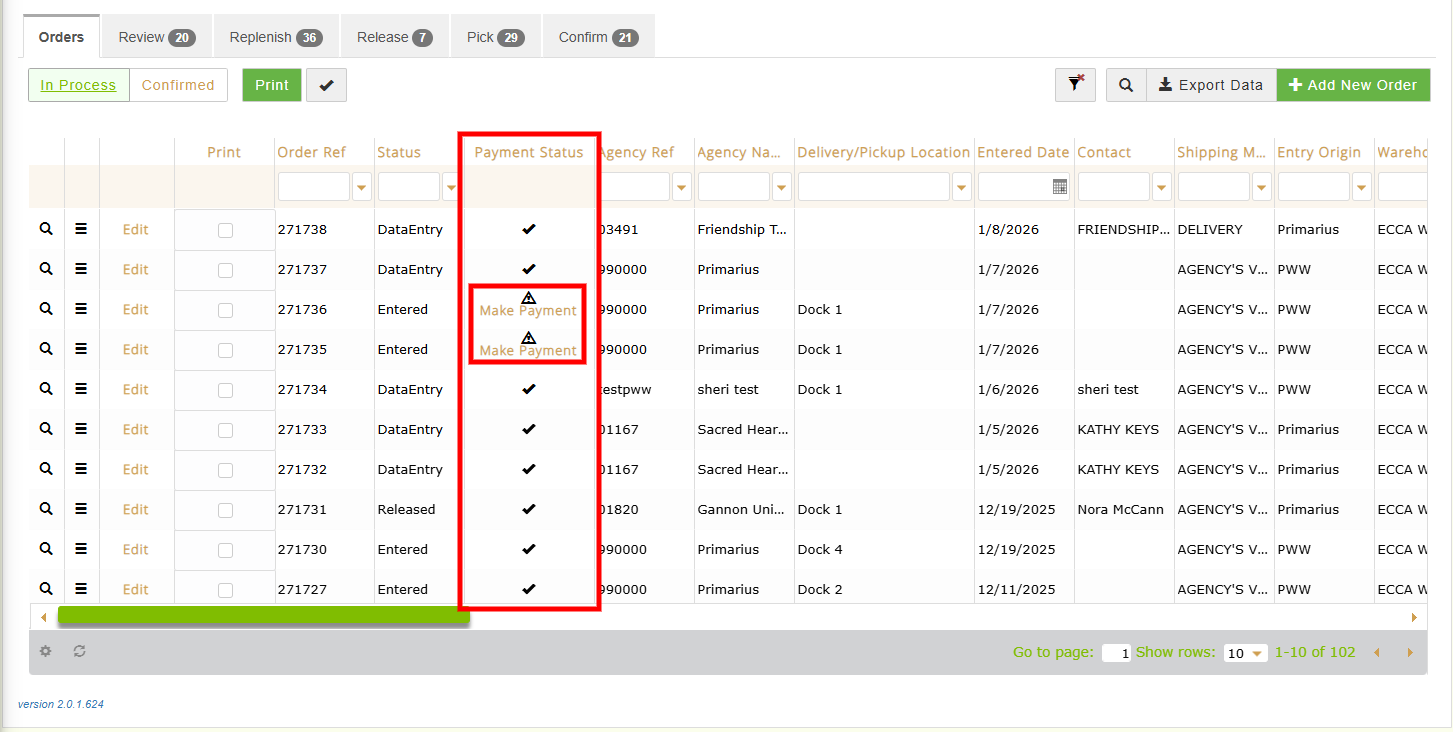
Clicking Make Payment opens a Payment Details pop-up window. To complete the payment successfully, they will need to enter First and Last Name, Card Number, Expiration Date (MMYY), CVV Code, Amount, and the full billing address. Click Pay Now to complete the purchase.
Confirming Receipt of Payment
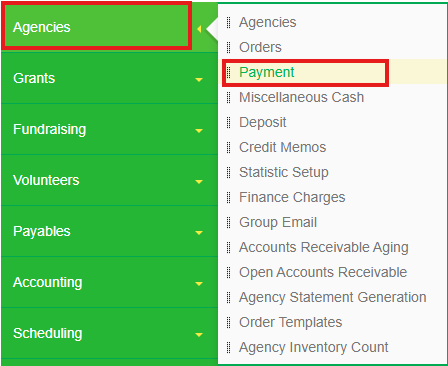
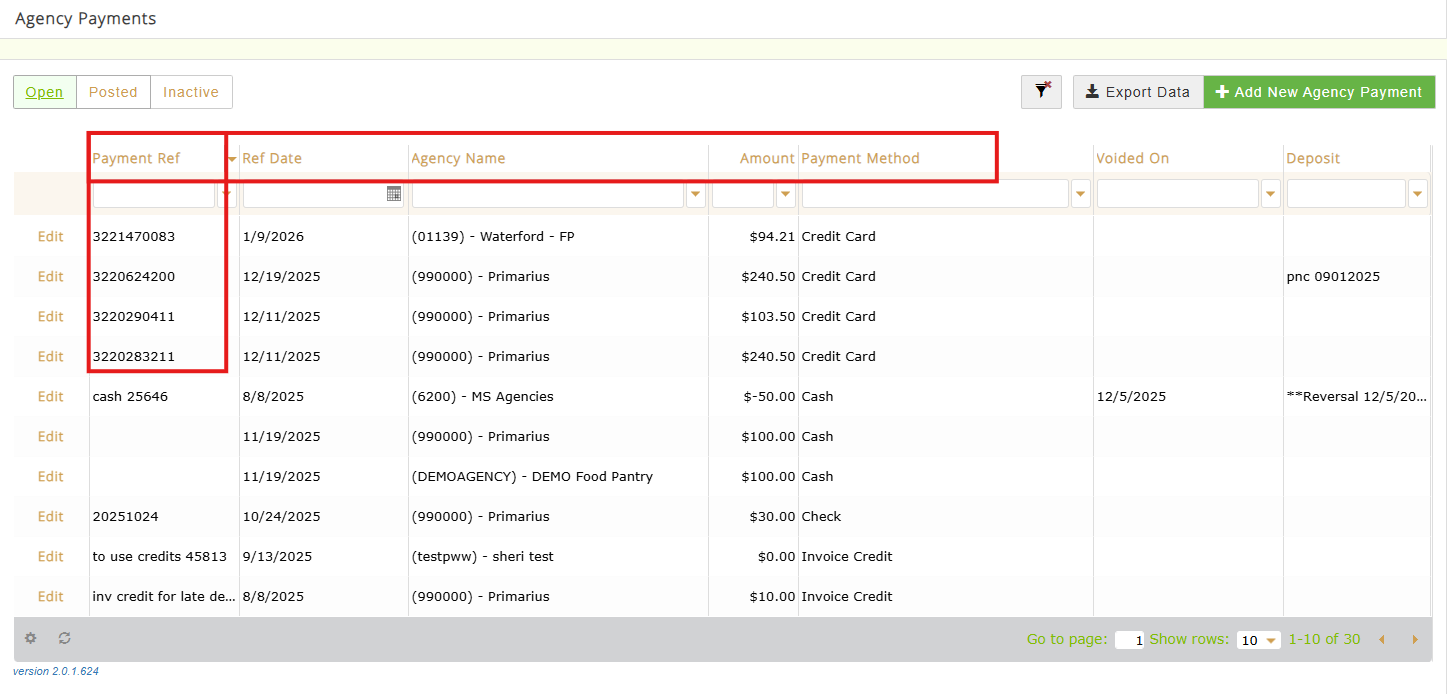
Once payment has been processed, the following information is stored in our system: Transaction ID, Amount, and Payment Method. When using USAePay, the Transaction ID is labeled as Payment Reference. This can be viewed by clicking Agencies > Payment.
*Please Note, sensitive information, such as credit card numbers, WILL NOT be stored in either Primarius or USAePay.*
Refunds
If a Food Bank needs to process a refund for any reason, the steps to do so are available by clicking HERE.