Primarius now offers a seamless data bridge to QuickBooks Online, which will automate the transfer of your accounting data. This knowledge article will cover establishing the integration between the two programs.
Registering for a QuickBooks Account
Before completing the steps below, Food Banks must enroll in an Intuit QuickBooks account. Account registrations can be made by clicking HERE. If a QuickBooks account is already in place, click HERE to log in.
Establishing the Primarius and QuickBooks Integration
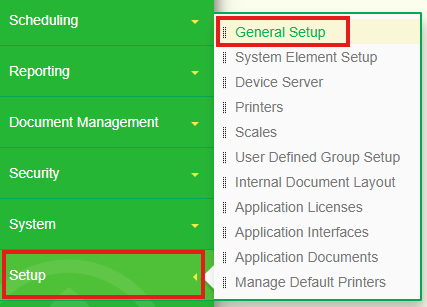
1. From the Primarius navigation menu, select Setup > General Setup > Application Integrations.

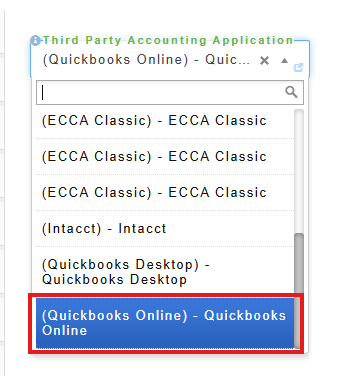
2. In the dropdown box labeled "Third Party Accounting Application", select Quickbooks Online.
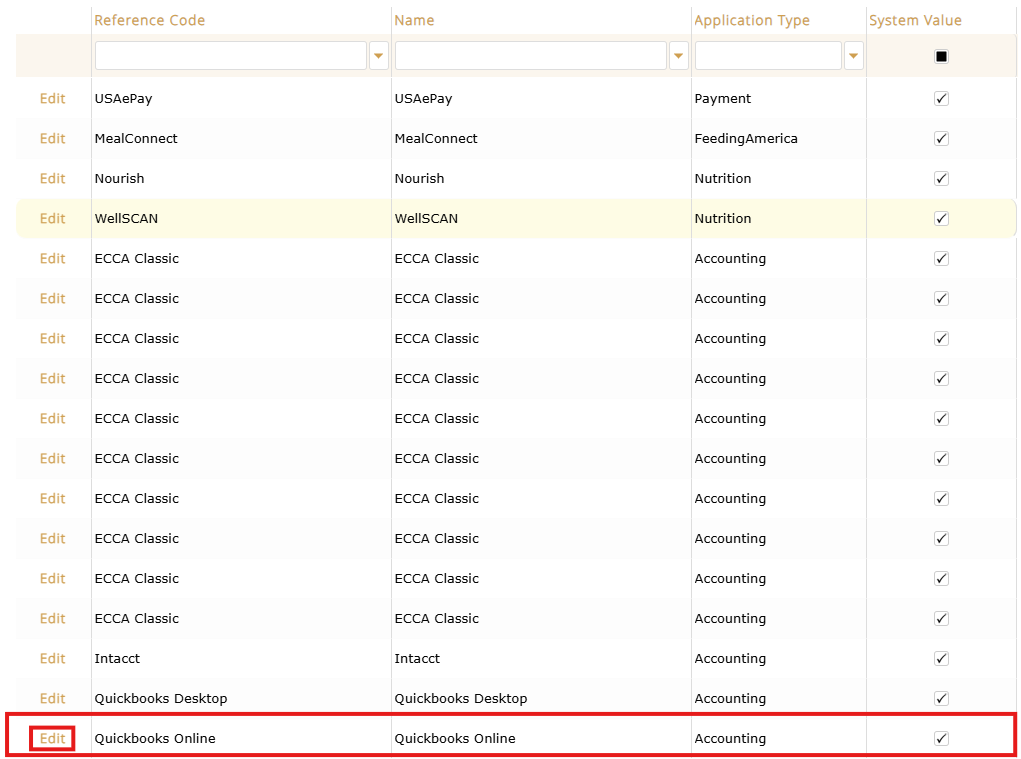
3. From the Primarius navigation menu, select Setup > Application Interfaces. Find and select the Edit button to the left of Quickbooks Online (this may require you to scroll through multiple pages of results).

4. Click Configuration, enter the required information by clicking the Edit button, enter the Value, and click Save.
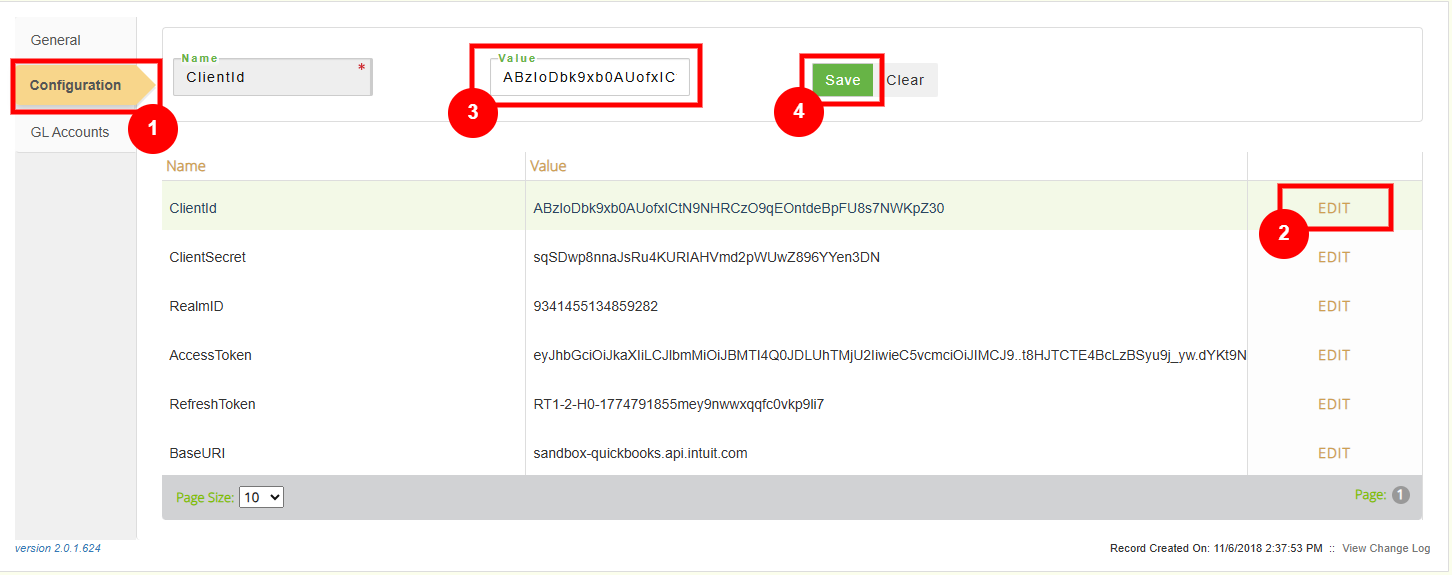
*Repeat this step for each of the six fields. Data for these fields will be sourced from your QuickBooks account and can be accessed via the links below.:
- Client ID, Client Secret, and Realm ID
- Access and Refresh Tokens
- BaseURI - set value to either sandbox-quickbooks.api.intuit.com or production-quickbooks.api.intuit.com
5. Now you will map your fields from Primarius to QuickBooks. Click the GL Accounts tab, then into the GL Accounts drop-down to select your Primarius field. Next, type how you would like this field to display in QuickBooks by entering text in the Display text box. Click Save.
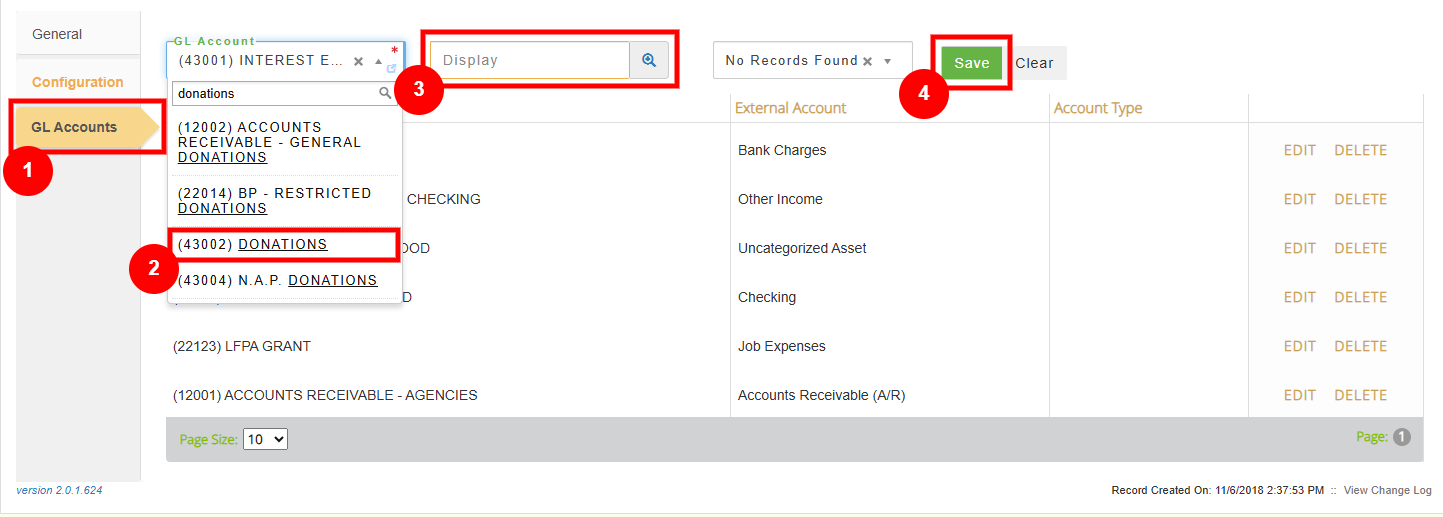
*Repeat this step for each field you would like to map. You may edit these fields anytime by navigating to this screen and selecting the Edit button.