You can require Agencies to electronically sign their orders with either their signature or a PIN. This knowledge article explains how to enable these settings and create a unique PIN for an Agency.
Enabling the Agency Pin Code and Signature Options
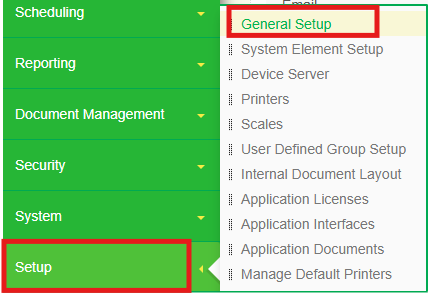
1. From the Primarius navigation menu, select Setup > General Setup.
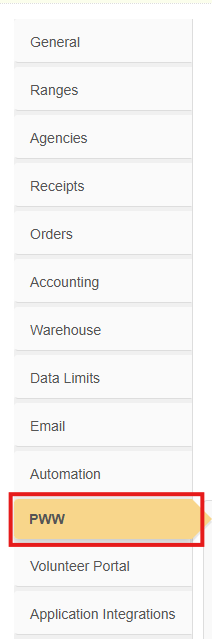
2. Click into the PWW tab, look for the Online Ordering section, and check the box to the right of Use Agency PIN Code / Use Agency Signature.
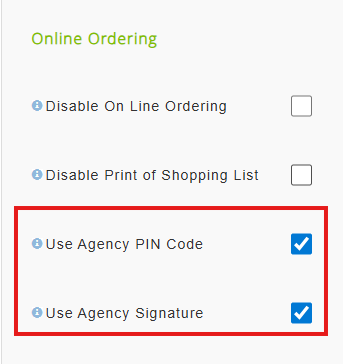
*The PIN option will require agencies to enter a unique number assigned to them. The Signature option will simply require their signature.
Adding the Agency PIN
1. From the Primarius navigation menu, select Setup > Agencies.
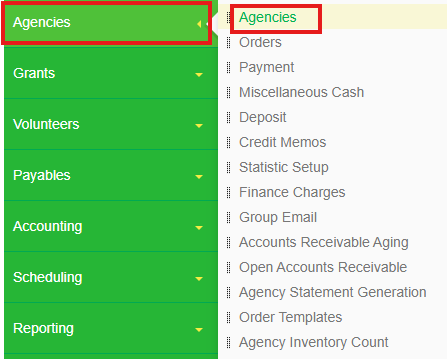
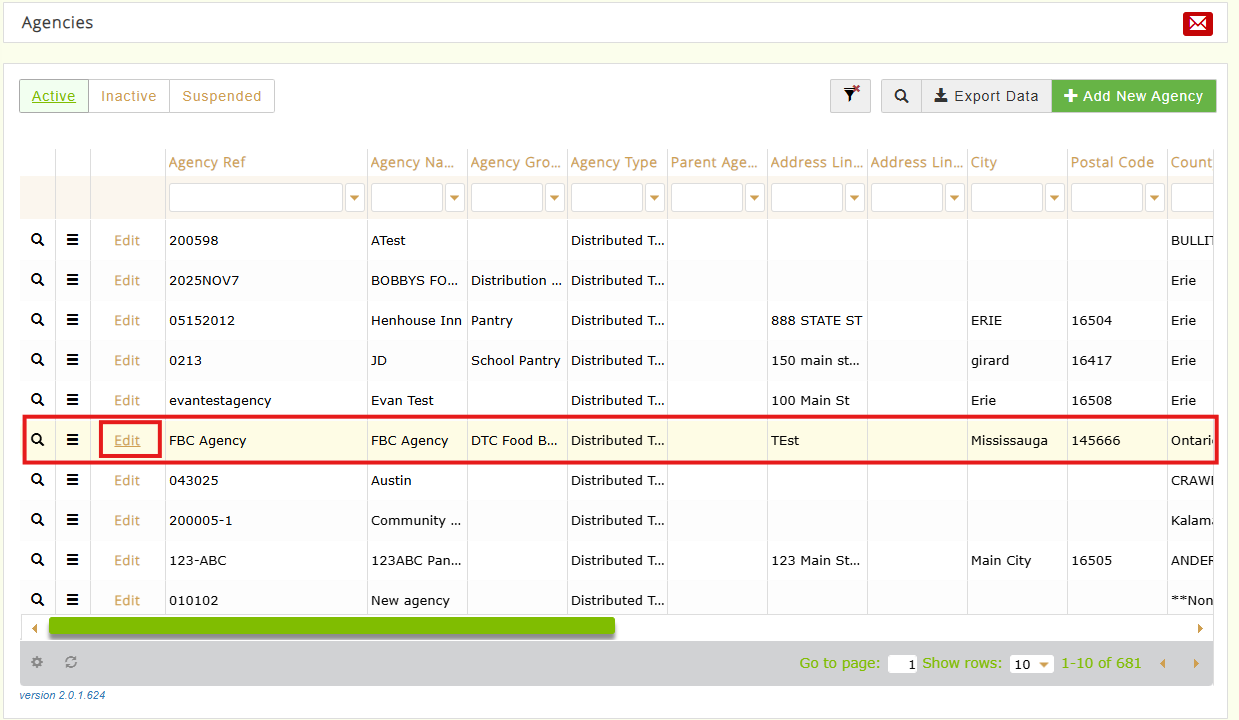
2. Locate the Agency that you'd like to assign a PIN to. Click the Edit button to the left of the Agency Reference.
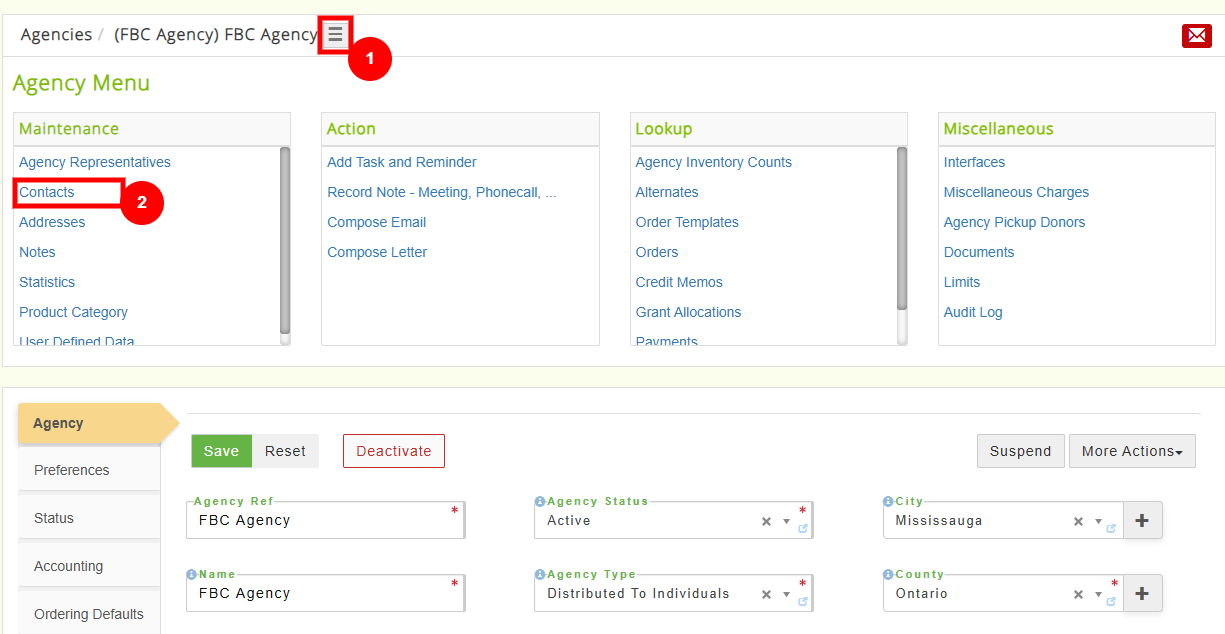
3. Click the hamburger menu at the top of the page, then click Contacts located under the Maintenance column.
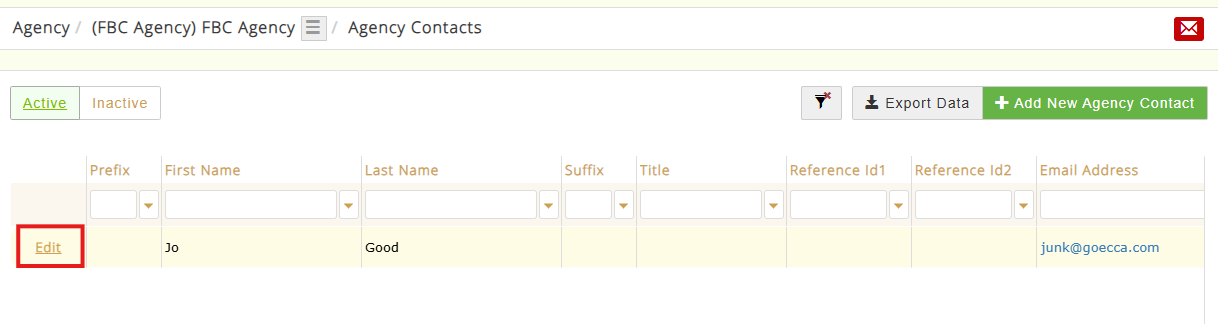
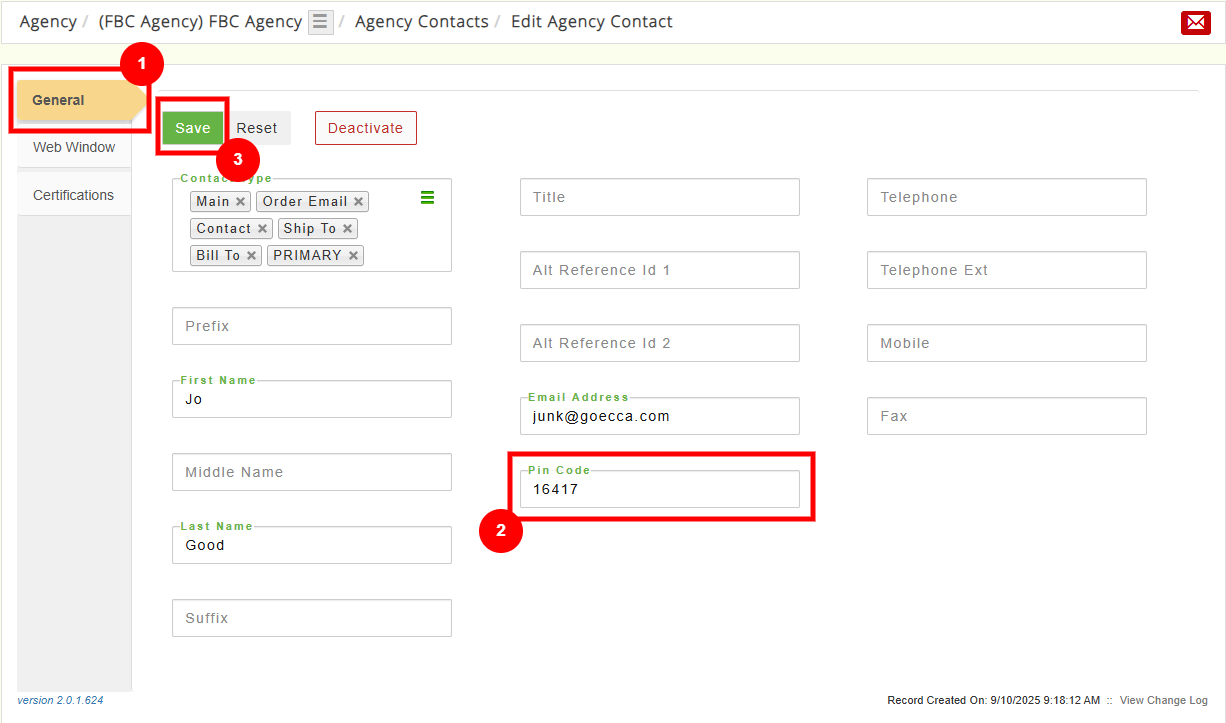
4. Click the Edit button to the left of the Contact name. On the following page, make sure you are on the General tab, click into the text box labeled PIN Code, and enter the PIN you'd like assigned to the Agency contact. Click Save.
Once the order has been picked, the Agency will be prompted to sign or enter their PIN. The Agency will also have the option to sign in PWW under the Order History tab.